With older, non-Unicode fonts, character glyphs were simply mapped over Roman characters. So, with SPEzra for example, pushing "b" displays a bet, and "(" displays an ayin. However, the computer understands these characters as "b" and "(." Thus, when the document is transferred to a computer that does not have that specific font installed, the computer displays those characters.
Unicode seeks to allow for transfer of encoded documents between platforms and independent of fonts. So, if a document is typed using one Unicode font, it will also be viewable using another Unicode font. Likewise if the font is not installed, the computer simply defaults to its normal Unicode font. If one wants to use a different font for aesthetic (or other) reasons, one can change the font just like one would do with English. Additionally, the computer understands the characters to be the ones that the screen displays. So, an ayin both displays as an ayin and is encoded that way. This makes cross-platform text transfers and searches possible, because texts can be encoded with the characters in which they are written. Even though learning to switch to and use keyboard layouts for other languages takes a little bit of time to learn, the benefits of Unicode more than make up for this small initial investment of time and effort.
Installation Questions - Windows
I downloaded SBL Greek or SBL Hebrew. What do I do now?
In order to use the font, you must install it on your system.
First, find the file you downloaded. It should be called SBL_grk.ttf or SBL_Hbrw.ttf.
Now open the Control Panel.
If it is not in it already, you will need to switch to Classic View (in the left column).
Open Fonts.
Drag the file you downloaded into the Fonts window. This installs the font on your system.
Please note: You will need to restart any open program before the font will be available for use in it.
I installed the SBL Greek or SBL Hebrew font, but it only types in English.
Because the SBL Greek font is a Unicode font, you will need to instruct your computer to input text in Greek or Hebrew. Directions for installing keyboards for your specific computer can be found below.
Where can I download a keyboard for Greek?
SBL currently is not offering keyboards for SBL Greek. However, Windows has built-in keyboards suitable for biblical/classical Greek. For directions on installing these, please see the instructions for your specific system below.
How do I install a Hebrew keyboard in Windows XP?
Download one of the keyboard files from the following link (SIL is suggested unless you are familiar with Israeli keyboards):
http://www.sbl-site.org/educational/BiblicalFonts_SBLHebrew.aspx
Right-click on the downloaded file, and choose Extract all...
Click Next through the next several menus until the extraction is complete.
This will create a folder called BiblicalHebrewSIL or BiblicalHebrewTiro.
In it there will be a file called BHebSIL(v.1.5).exe or BHebTiro(v1.5).exe.
Double-click it.
Choose extract in the new window.
This creates another folder called Biblical Hebrew keyboard (SIL <or> Tiro). In it is a file called setup.exe.
Run this file. This will install the keyboard.
You also need to enable the Language Bar.
Open the Control Panel.
Click Date, Time, Language, and Regional Options
(If you are in Classic View, double-click Regional and Language Options and skip the next step).
Click Regional and Language Options.
In the Window that opens, click the “Language” tab.
Check the option for Install files for complex script and right-to-left languages (including Thai).
You may need your Windows XP System Disk to install these files.
Then click the Details button above that.
In the window that opens, click the Language Bar button.
Check "Show the language bar on the desktop," and click OK.
You will now notice a little icon in the lower-right corner that reads "EN."
If you click on it, you will have the option to change it to HE (Hebrew).
How do I install a Greek keyboard in Windows XP?
Open the Control Panel.
Click Date, Time, Language, and Regional Options
(If you are in Classic View, double-click Regional and Language Options and skip the next step).
Click Regional and Language Options.
In the window that opens, click the "Language" tab.
Then click the Details button above that.
In the window that opens, click the Language Bar button.
Check "Show the language bar on the desktop," and click OK.
Click the Add button.
Change the language to Greek, and select for keyboard Greek polytonic.
Click OK, then OK in the next window, then OK in the last window.
You will now notice a little icon in the lower-right corner that reads "EN."
If you click on it, you will have the option to change it to "EL" (Greek).
You can now open Word, and by changing these icons, you will be able to type in Greek.
You may find a layout using the on-screen keyboard utility.
(Start menu > All Programs > Accessories > Accessibility > On Screen Keyboard)
How do I install the Hebrew keyboards in Windows Vista or Windows 7?
Download one of the keyboard files from the following link
(SIL is suggested unless you are familiar with Israeli keyboards):
http://www.sbl-site.org/educational/BiblicalFonts_SBLHebrew.aspx
Right-Click on the file you downloaded, and choose extract all...
Click Next in the new window.
When the extraction is finished, you will see a new folder, called Biblical Hebrew keyboard. Open it.
If you receive a security warning that the publisher could not be verified, click Run.
SBL certifies that the code is safe.
Run setup.exe.
You may get a User Access Control warning. Click yes to allow the operation.
The keyboard is now installed.
Please verify that you have the language bar enabled so that you may switch easily to it.
Go to the Control Panel.
In the Clock, Language, and Region area, choose "Change keyboards or other input methods."
(If you are in Classic View, this is Regional and Language Settings)
In the window that appears, choose Change keyboards...
Select the second tab that reads Language Bar.
Select the radio button for "Docked in the taskbar" and check "Show text labels in the Language Bar."
Click OK, then click OK again.
How do I install the Greek keyboard in Windows Vista or Windows 7?
Open the Control Panel.
In the Clock, Language, and Region area, choose "Change keyboards or other input methods."
In the window that appears, choose Change keyboards...
In the next window, click the add button.
Scroll down to Greek, and click the + icon, then click the + icon next to Keyboard.
Check Greek Polytonic.
Click OK.
Select the second tab that reads Language Bar.
Select the radio button for "Docked in the taskbar" and check "Show text labels in the Language Bar."
Click OK, then click OK again.
Using SBL Hebrew - Windows
I installed the font, but it just types in English.
Because this is a Unicode font that also includes the Latin character set, you have to tell your computer that you want to type in Hebrew. The best way to do this is to install at least one of the keyboards that comes with the font (SIL is recommended for users not familiar with the standard Israeli keyboard). Install the keyboard(s) according to the directions for your system above. After they are installed, open your word processor. When in MS Word, select the SBL Hebrew font from the font menu. Then select “HE” in the language bar. You should now be able to type in Hebrew.
Where can I find a layout for the Hebrew keyboards?
You can find this information one of two ways. Please note that depending on the Hebrew keyboard you are using (SIL or Tiro), different keys will produce different letters. A character map of the keyboards can be found in their respective manuals. If you will be using the fonts to input Hebrew quite a bit, it is recommended that you print out these character maps. You may notice that there are several maps in each manual. Please pay particular attention to the state at the top of the page. For a normal state you only need to push the key. For all other states, other keys (like Shift or Alt) must also be held down to produce the character.
A second method is to use the on-screen keyboard. This can be found by selecting All Programs from the Start Menu, then navigating All Programs > Accessories > Accessibility > On-Screen Keyboard. When returning to the program in which you wish to enter Hebrew, please be mindful of the language selection in the language bar.
When I type a holem, it is too far to the left of the word.
There is a particular issue in Microsoft Word wherein the font reverts back to Times New Roman, which does not contain the complex scripts that the SBL Hebrew font uses. When this happens, it will appear like this:
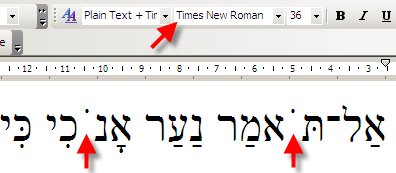
Make sure that the font selected in the font menu is in fact SBL Hebrew. It should appear like this:
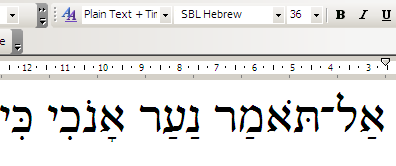
I am having other spacing issues when inputting diacritical characters. What can I do about this?
Make sure that the active font is SBL Hebrew. Please be sure to consult the manual about how the font orders its marks. The manual also describes a number of specific issues. If your issue is not here, please refer to the SBL Font Forum for support.
When I try to add some of the alternate state characters (those that require keys like Ctrl or AltGr), Word does something else entirely.
Microsoft Word uses a number of keyboard shortcuts for many of its functions, like Ctrl-S to save a document. These shortcuts are often the same as the commands to input special characters with the Hebrew font. There is unfortunately no way to disable the keyboard shortcuts in Word. To avoid these conflicts, type any text containing special characters in Notepad and copy the text into Word.
When inputting characters in Microsoft Word, it displays the right character at first, but it changes when I type the next word.
This often has to do with the Auto-correction features in MS Word. It is advisable to disable this feature when typing with the SBL Hebrew fonts. More information about this can be found in the SBL Hebrew manual.
Using SBL Greek - Windows
Where can I find a layout for the Greek Polytonic keyboard?
These websites have excellent graphics of the Microsoft Greek Polytonic keyboard, as well as information about other keyboards you can use with SBL Greek:
How do I get accent marks with the letters?
When using the Microsoft Greek Polytonic keyboard that comes with Windows (or another deadkey style layout), you must type the accent before the letter. When using a sequential keyboard, like the Keyman Greek keyboard, you must type the letter first, then the accent.
How can I enter multiple accent marks?
When using a deadkey type keyboard, like the Microsoft Greek Polytonic keyboard, you must enter all of the accent marks as one key. With a sequential keyboard, the accents can be entered separately following the letter.
SBL Fonts - Mac
In what versions of OS X will the fonts work?
The SBL Greek and Hebrew fonts are verified to work in 10.4 (Tiger) and higher. Users may have some success with specific applications in 10.3 and lower, but OS-level support for OpenType fonts is greatly reduced.
How do I install the fonts in Mac OS X?
Double click the icon of the downloaded font. A preview window of the font will be displayed. Click the “Install Font” button at the bottom of the window. Please read the section about Macintosh compatibility on page 18 of the SBL Hebrew manual.
How do I install the fonts in Mac OS 9?
OS 9 is not a supported operating system. It may be possible to install the fonts with the help of other software, and users are free to do so. However, this is not supported by SBL or Tiro Typeworks.
I installed the SBL Greek or SBL Hebrew font, but it only types in English.
Because the SBL Greek font is a Unicode font, you will need to instruct your computer to input text in Greek or Hebrew. Directions for installing keyboards for your specific computer can be found below.
What keyboards do I need to use SBL Greek and SBL Hebrew? How do I add Greek and Hebrew Keyboards in OS X?
Any Unicode keyboard in Greek or Hebrew will work with the fonts. OS X 10.4 and above includes a Greek Polytonic keyboard that many user find satisfactory. While modern Hebrew keyboards will work with SBL Hebrew, they often lack easy access to the diacritics often used in biblical studies. As such, SBL makes available Hebrew keyboards designed with biblical studies in mind.
First steps (for Hebrew only, skip to "Adding the keyboards" if you just need Greek):
Download the keyboard files from the SBL website.
Follow the instructions in the installer.
After it is finished, you need to either restart your computer or log out and log back on.
Adding the keyboards:
Open the System Preferences, and chose International (Language &Text in Snow Leopard and above).
Click the Input Menu tab.
Scroll down to Biblical Hebrew and check the keyboard you want
(SIL is recommended unless you are familiar with Israeli keyboards).
Scroll down to Greek Polytonic and check it.
Make sure that "Show input menu in menu bar" is checked.
You should see a flag icon in the upper-right corner of the screen if it is.
Close the window.
For charts of the Biblical Hebrew keyboard layouts, please refer to the manuals for each keyboard.
Why can’t I use the SBL Hebrew with some applications in OS X?
This has to do with how the fonts are handled by both the operating system and individual applications. Support for OpenType fonts with complex scripts was not available at the level of the operating system as late as Tiger. While support seems to have improved in Leopard, this is still being tested. On the other hand, some applications, like Mellel, support the font at the application level and provide better compatibility. Such applications are therefore currently the best option for using SBL Hebrew in OS X.
When I try to use SBL Hebrew in Microsoft Word for Mac OS X the font does not show up or the text does not display correctly.
Microsoft Office 2011 does not support right-to-left languages. At this time, Microsoft has not announced that any support will be forthcoming. As such, neither Office 2011, Office 2008 nor Office 2004 is a viable option for using the SBL Hebrew font. At this time, NeoOffice does not support the type of complex script layout that SBL Hebrew uses. As a result, consonants will display properly but vowels and other diacritics will not. There are several word processors, such as Mellel, which do support the proper complex script layouts, and these are currently the best option. Additionally, users of Leopard (10.5) and later can edit text in Hebrew by using the SBL Hebrew font in TextEdit. For a more detailed explanation of using SBL Hebrew in OS X, please refer to the font manual.
I am using the Mac keyboards, but the modifier keys (like Ctrl and Alt) seem to work differently!
This has to do with a confusing difference between Windows and Mac keyboards. Even though both keyboards have Ctrl keys, the Mac key that corresponds to the functionality of the Windows Ctrl key is the Command (Apple) key. In order to conform to normal Mac User Interface standards, keystrokes represented by the Ctrl key in Windows are mapped to the Command (Apple) key on the Mac. For example, in order to access the same keys that are accessed by holding down Ctrl+Alt on Windows, Command+Alt must be held down on the Mac. The Alt and Shift keys behave the same on both platforms. For quick help finding a key, launch the Keyboard Viewer from the input menu of the menu bar.
SBL Fonts - Linux
Can I use these fonts with Linux?
SBL Hebrew and SBL Greek are compatible with Linux. Users are free to install and use the fonts on these platforms. However, neither SBL or Tiro Typeworks provides support for Linux installation or usage. Please refer to the SBL Font Forum for help with the SBL fonts in Linux.
The blog Berith Road has some information about adding a Biblical Hebrew keyboard to Linux systems. Note: This website is not affiliated with SBL. SBL is not responsible for its content.
SBL BibLit
Where is the SBL BibLit font?
The SBL BibLit font is currently under development. Please continue to monitor the SBL website as well as the SBL Font Forum for news about this font.
If you have a question that is not in the FAQ, please email us.